Submitting your final assignment
Table of Contents
1. Introduction
For this course we use Github to submit your assignment. We are aware that most of you have not used Github before. Github may feel unfamiliar, but you only need to follow these steps once. It is simpler than it looks.
This file helps you to submit your final assignment. Below we explain the following steps:
- sign up to get a github account
- create a github repository for your final assignment
- choose the setting of the repository (e.g. make it a private repository)
- share the repository with me (and a fellow student if you do the assignment together)
- upload your assignment to the repository
- fill in the google form
Following these six steps will take approx. fifteen minutes.
2. Sign up at github
- Go to https://github.com/ and sign up to create an account.
- Github will send you a verification email. Click the link before proceeding.
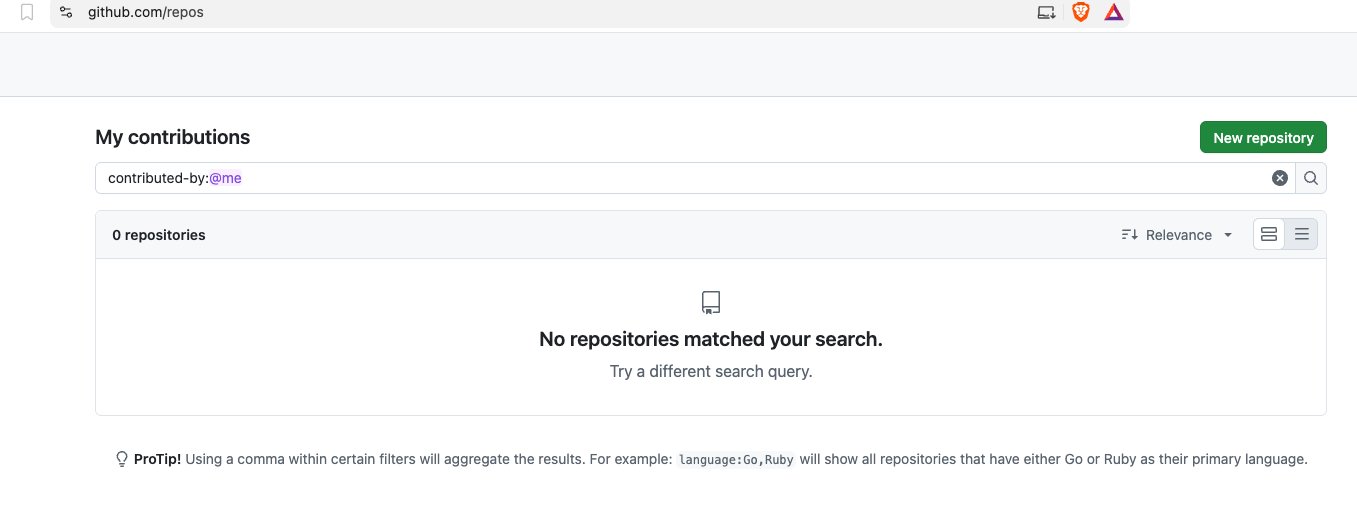
- After creating an account and signing in, go to https://github.com/repos which lists all your repositories (if you just signed up, there will be no repositories)
3. Create new repository
- Click on the button “New repository”:
4. Repository python-assignment
- fill in the form:
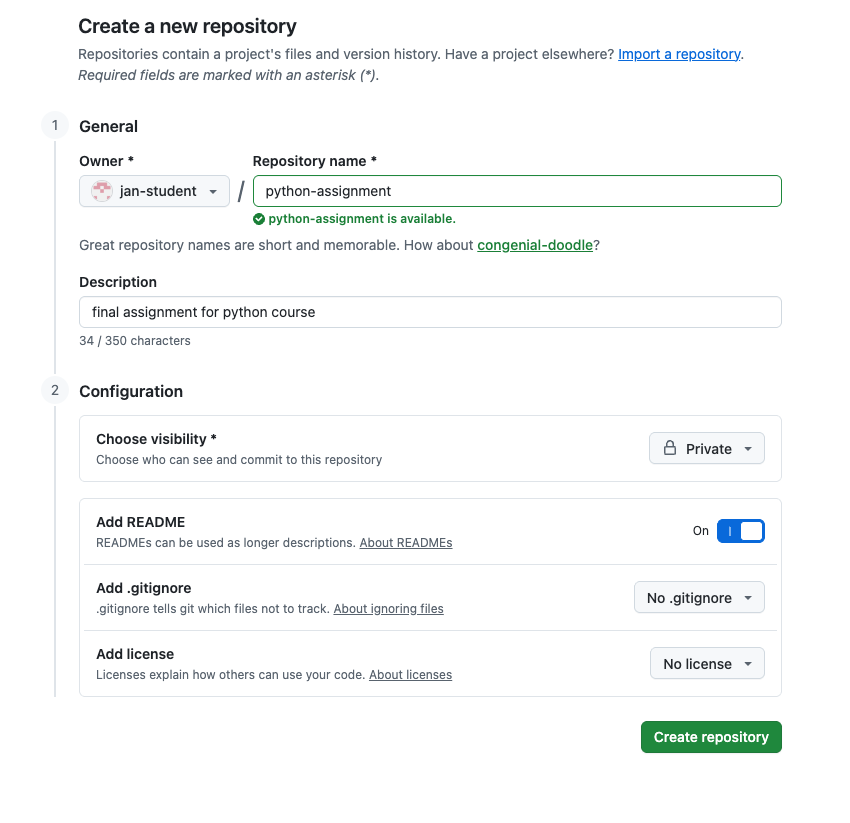
- Fill in:
- the Repository name:
python-assignment - give a brief description of the repository
- Configuration:
- visibility: choose
private(we will upload your grade file on this repository and you probably do not want everyone to see this) - Add README:
on
- visibility: choose
- do not worry about
.gitignorenorlicense
- the Repository name:
- click Create repository button
5. Sharing repository
- Go to Settings which can be found just above the name of the repository
python-assignment
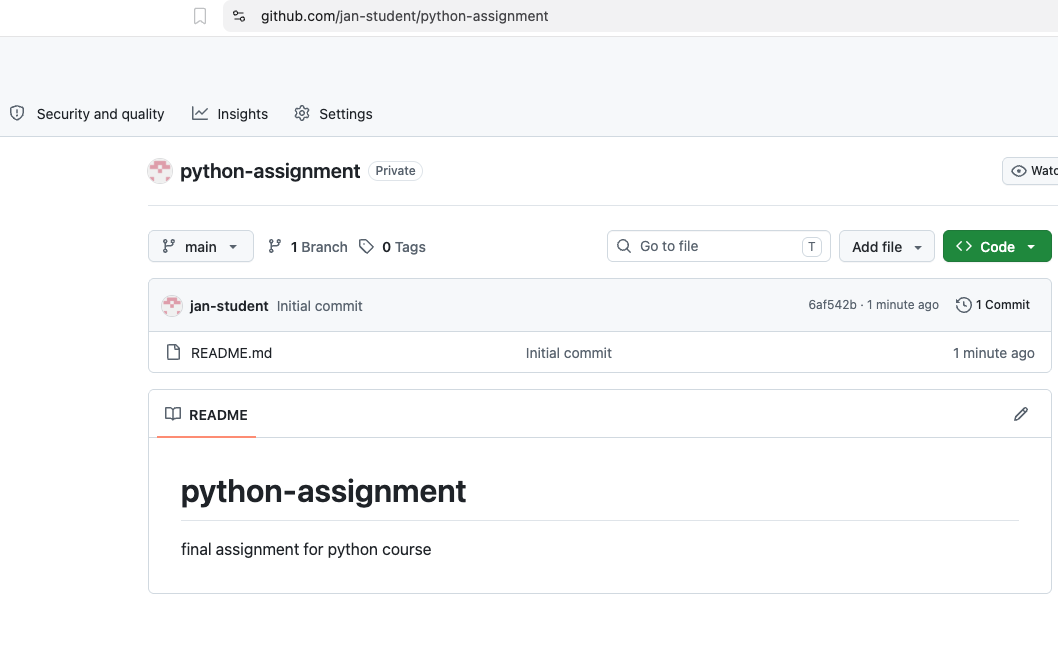
- You will see this menu:
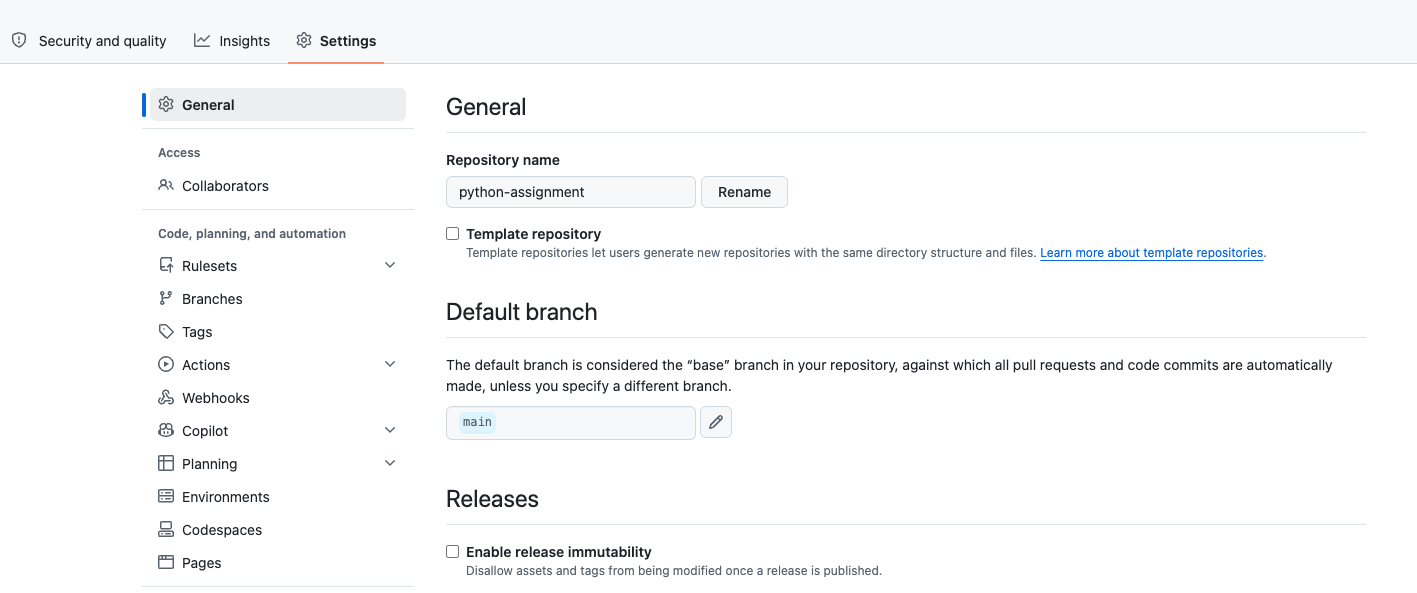
- Click on Collaborators in the left column (under General).
- Under Manage Access, click on Add people
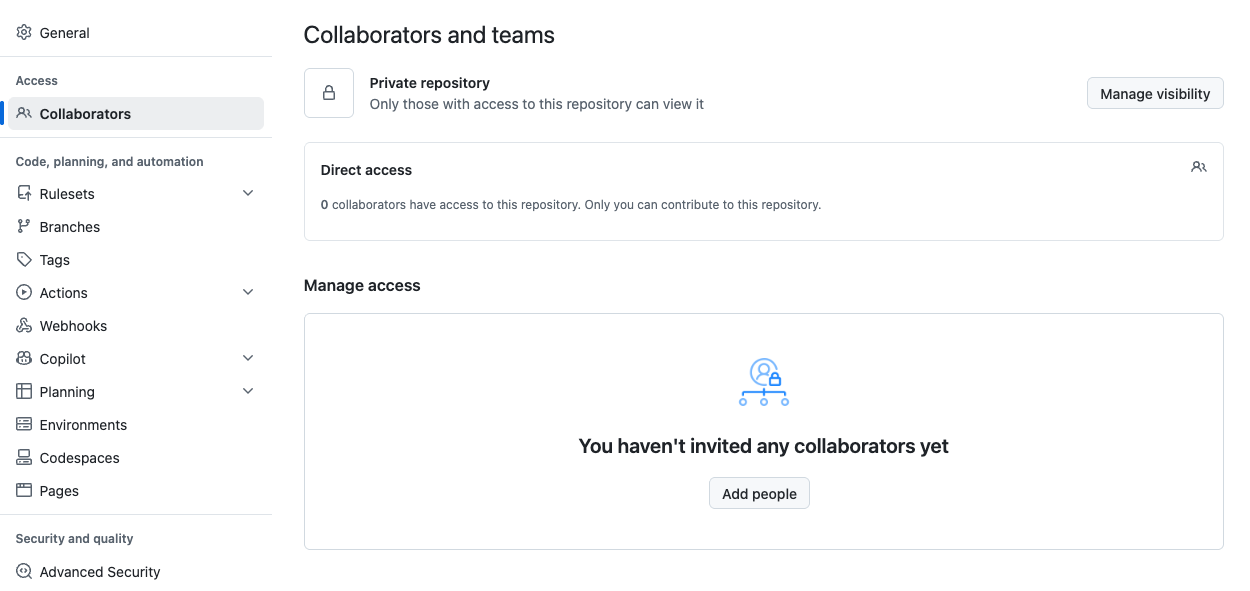
- You will see the following where you type “jan boone”
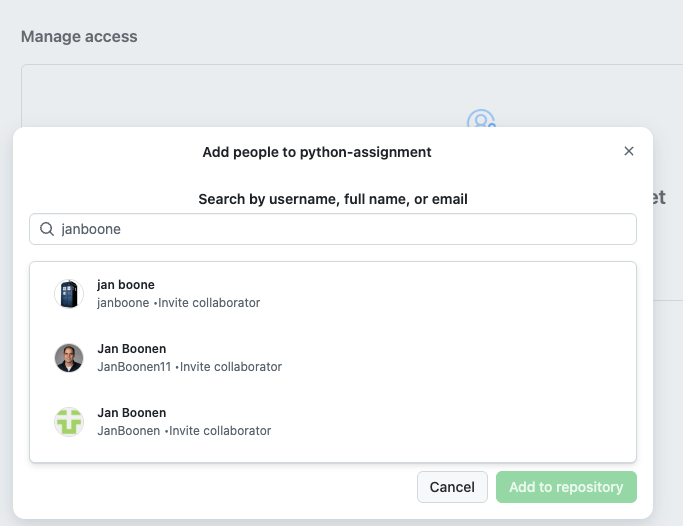
- Click on jan boone (that is, me) and Add to repository.
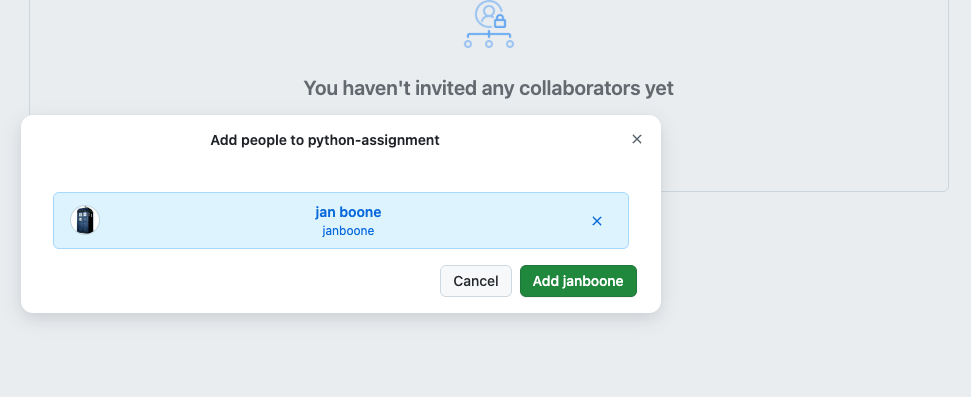
- Click on Add janboone
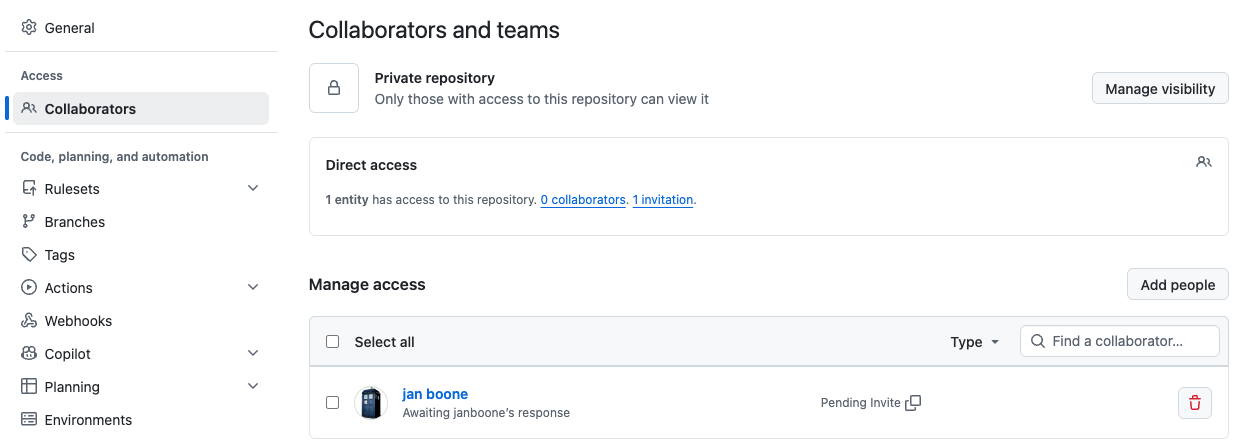
- This will make sure that I can see your repository and grade your assignment. If you do the assignment with another student, add their name as well.
- Github sends me an invite which I will accept.
6. Upload your assignment
- Once you finish your assignment, you can upload it on github
6.1. download assignment from the university server
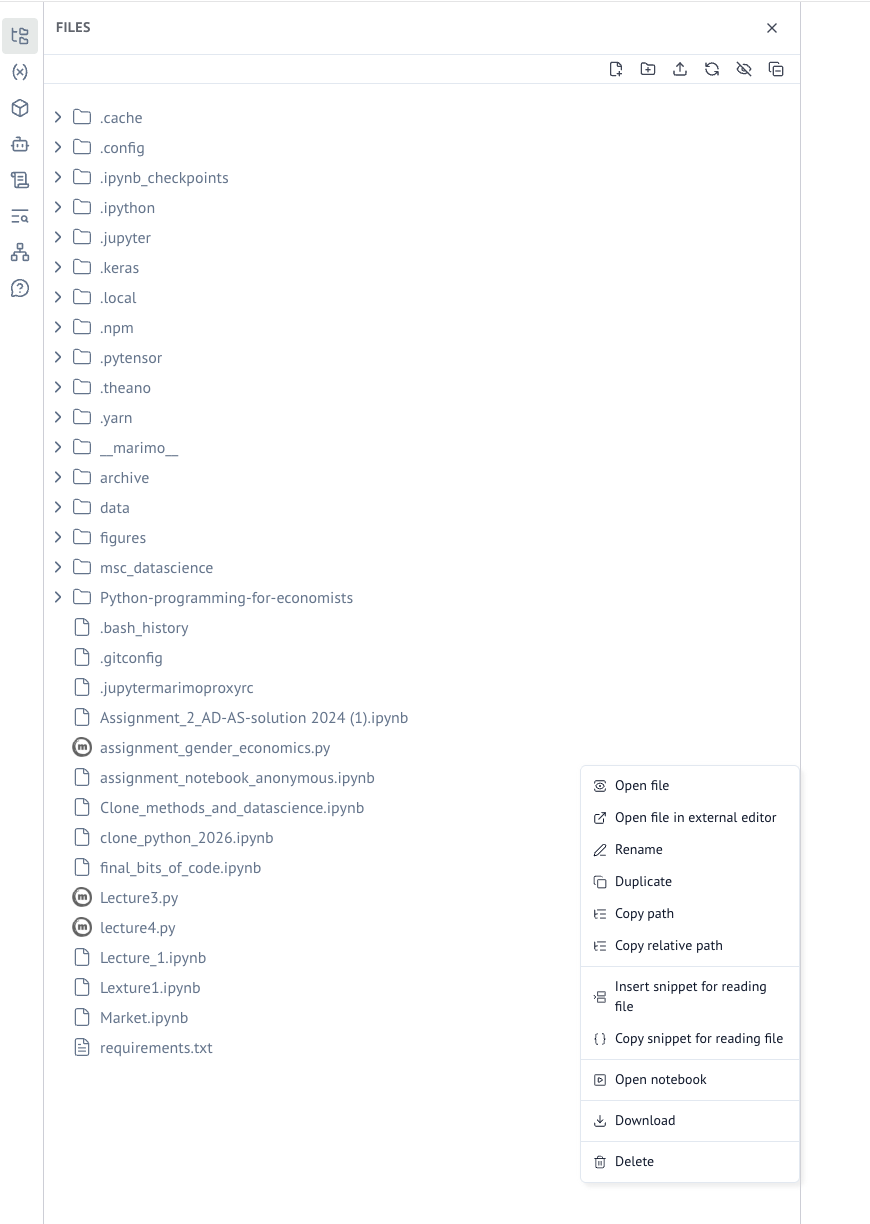
- If you work on the university server and have a notebook open, click on the icon on the top left (
FILES) - On the marimo file with the assignment (
assignment_gender_economics.py) in the example below - Click on the three dots on the right of the file to get the dropdown menu:
- In the menu click
Download - Save the file, e.g. in the Downloads folder
- If you work on your own laptop, find out where your assignment is (or copy your assignment to the Downloads folder). Then upload your assignment from this folder.
6.2. Github
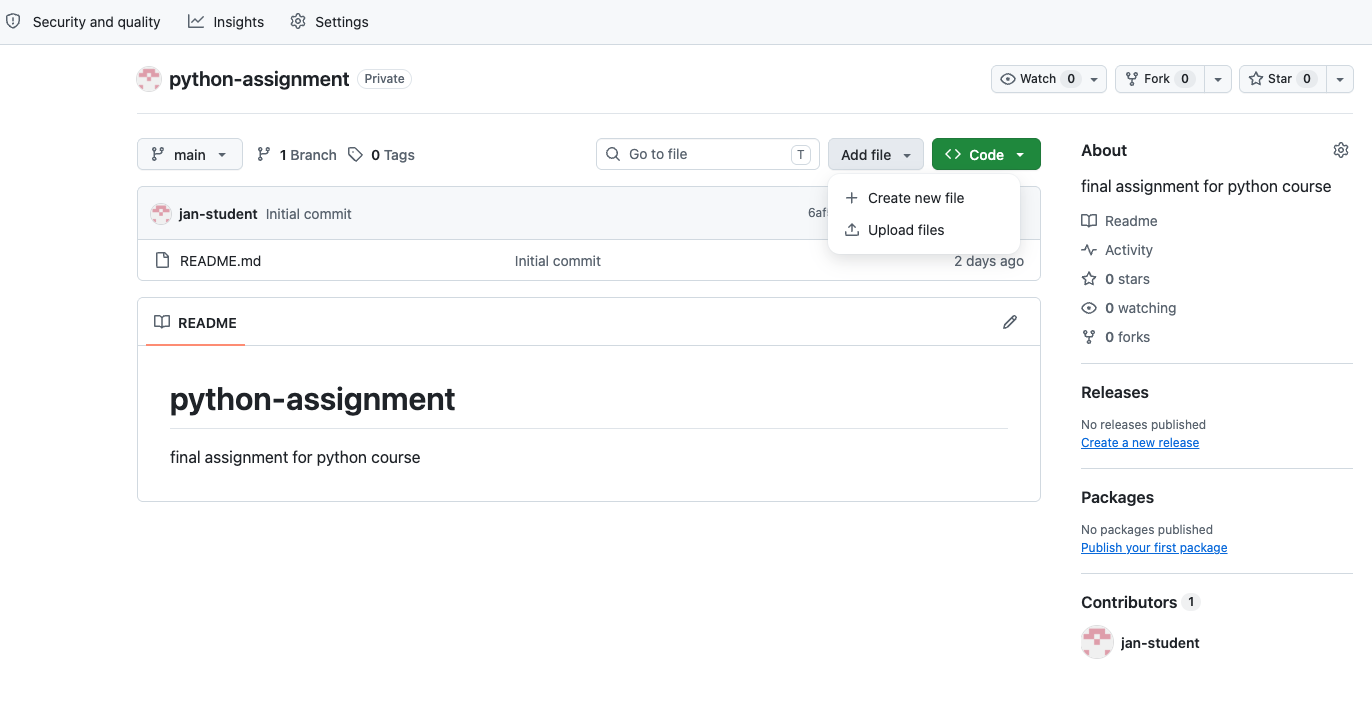
- Go to the github repository that you created above
- Click on Add file and then Upload files:
- Drag your file or click
choose your files - add your file; in my case
assignment_gender_economics.py - add a commit message
- click Commit changes
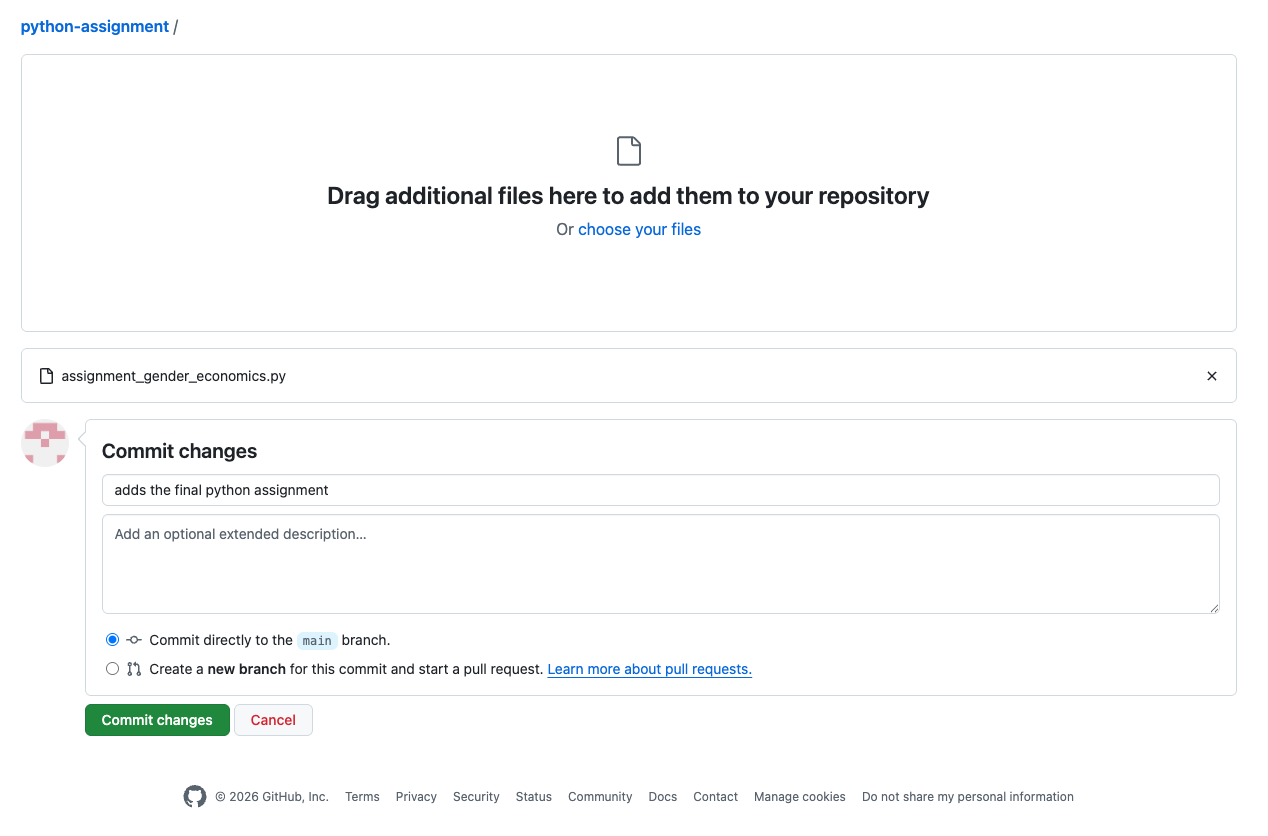
- Your file is added to the repository
- Github records the commitment date and time; make sure you commit your file before the deadline and do not change it after the deadline.
6.3. Important
- When we clone your repository from github, your app should work
- To illustrate, if you load data in your app, these data should be uploaded on github as well
- otherwise, a statement like
df = pd.read_csv("./data/my_data.csv")will give an error and your app does not work
- otherwise, a statement like
7. Share the repository address
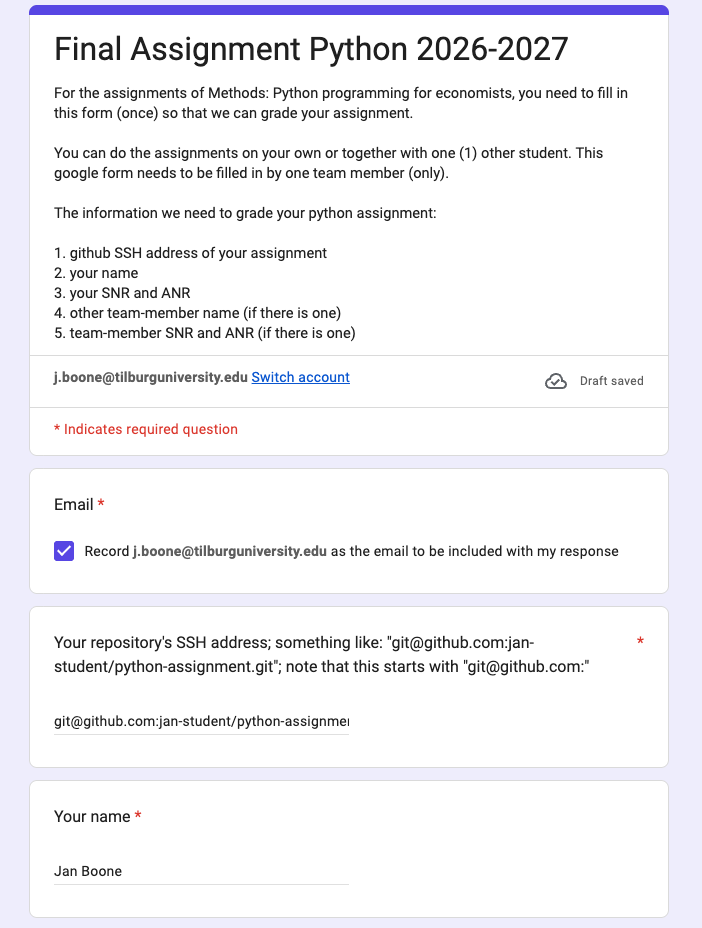
- When you submit your assignment, you fill in a google form. This will make sure that your repository is coupled to your name and SNR for the exam administration.
- The google form asks you for the address of your repository:
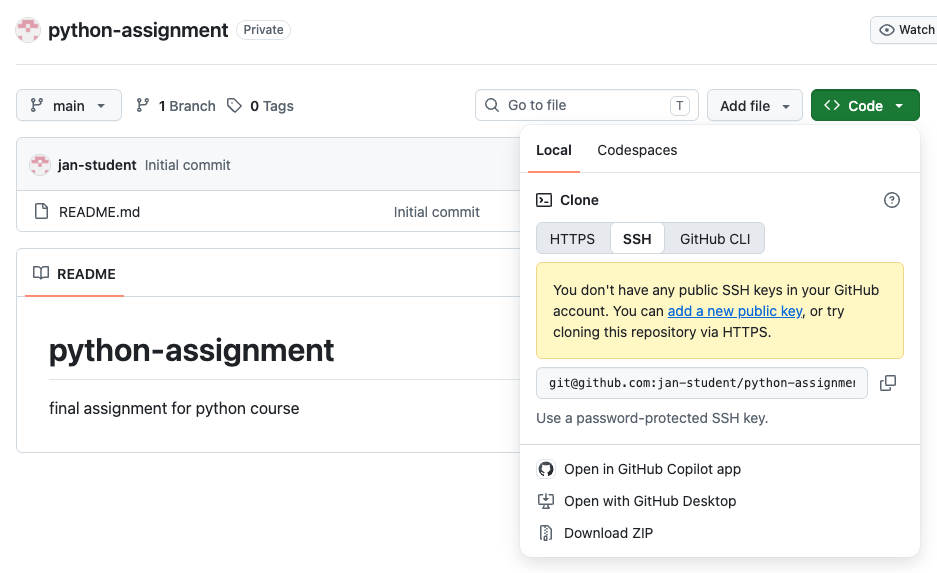
- In your repository click on the green button
< > Codeand then onSSH:- Copy the repository address (SSH format); in this case
git@github.com:jan-student/python-assignment.gitbut that will be different for you- your address should begin with
git@github.com:and then your github name and the name of your repository with.gitat the end - do not copy the
httpsaddress nor theGitHub CLIaddress
- your address should begin with
- Copy the repository address (SSH format); in this case
- Go to the Google form (we published the address in a Canvas announcement)
- you can only log in to the google form with your
@tilburguniversity.eduaddress
- you can only log in to the google form with your
- Paste your repository’s
SSHaddress in the google form:
- Submit the google form and you are done!